Trézor.io/Start — Starting Up™ Your Device | TreZor®®
Get started with Trezor.io/start to understand hardware wallet installation, connect your device, and explore supported cryptocurrency management features.
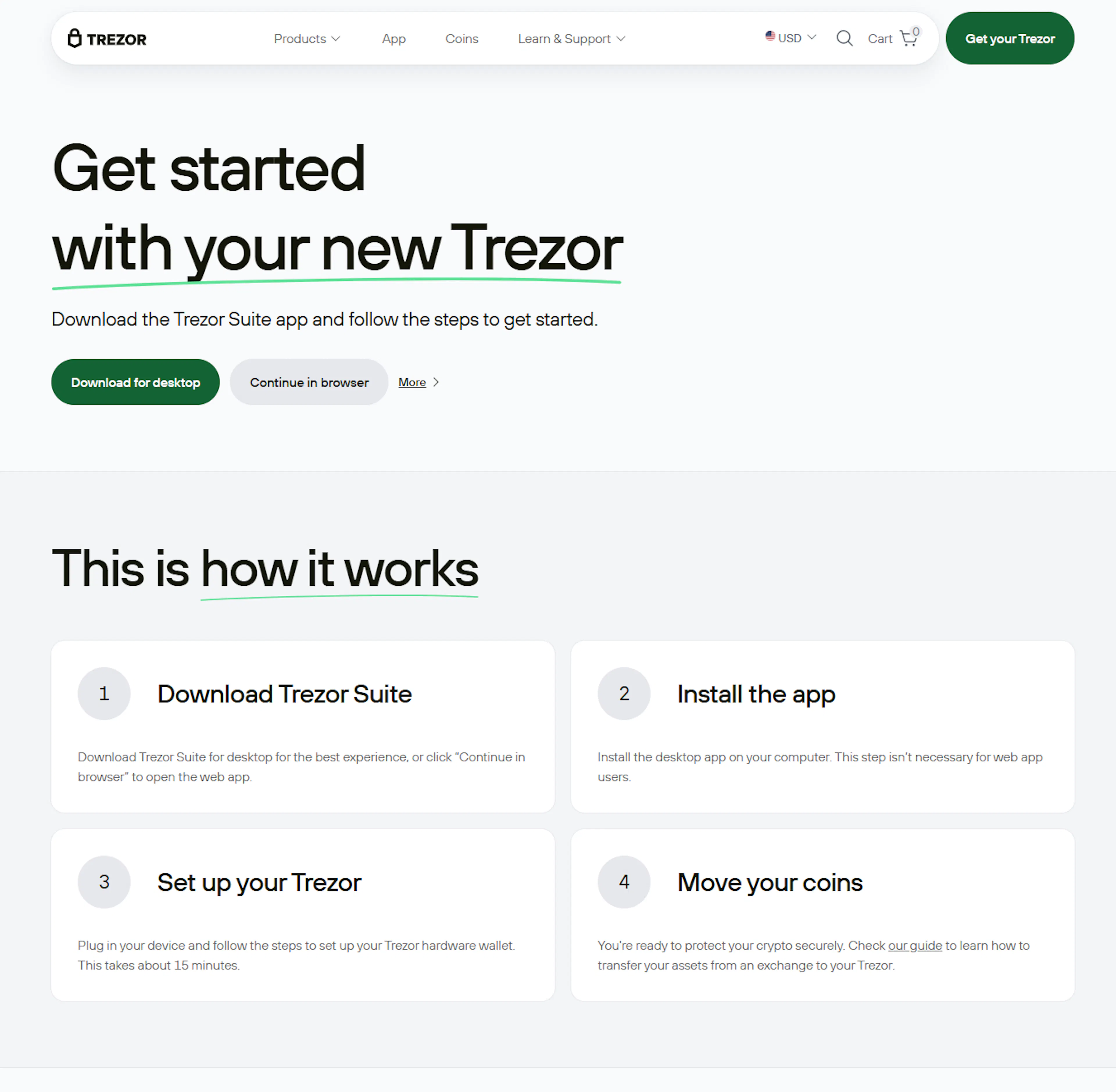
Trezor.io/start: The Complete Guide to Setting Up and Securing Your Trezor Wallet
Introduction to Trezor.io/start
Getting started with cryptocurrency requires more than choosing a wallet. Protecting private keys, securing recovery information, and verifying transactions are equally important. Trezor.io/start is the official starting point for users who want to configure a Trezor hardware wallet and learn how to manage supported digital assets securely.
The setup page guides users through the initial configuration process, including connecting their hardware wallet, accessing Trezor Suite, and following the instructions for creating or recovering a wallet. Whether you are setting up a new device or returning to an existing wallet, using the official resources helps you follow the correct procedures.
What Is Trezor.io/start?
Trezor.io/start is Trezor's official hardware wallet setup page. It provides device-specific guidance and directs users to the appropriate software and support resources.
A Trezor hardware wallet is designed to keep private keys protected on the physical device. This allows users to manage supported cryptocurrencies while keeping sensitive wallet operations under their control.
The setup process introduces several important features:
- Device connection and initial configuration.
- Official Trezor Suite access.
- Firmware installation and updates.
- New wallet creation.
- Existing wallet recovery.
- Recovery backup and security guidance.
For safety, always enter the official website address manually and check it before downloading software.
How to Set Up a Trezor Hardware Wallet
Follow these steps to begin configuring your device. The exact process may differ depending on your Trezor model.
Step 1: Visit the Official Trezor Setup Page
Open your browser and navigate to:
Select your hardware wallet model and read the instructions provided. Avoid sponsored or unfamiliar links that imitate the official website.
Step 2: Connect Your Trezor Device
Connect your hardware wallet to your computer using a compatible USB cable. Make sure the connection is secure and follow the instructions displayed on your device.
Step 3: Install or Open Trezor Suite
Follow the official instructions to access Trezor Suite, the companion application used to manage supported cryptocurrency accounts. Download the application only through official Trezor resources.
Step 4: Complete Firmware Installation
Your device may require firmware installation or an update before setup can continue. Follow the on-screen instructions and avoid disconnecting the device during an update.
Step 5: Create a New Wallet
If you are using a new device, follow the instructions to create a wallet. Carefully review the security information presented during configuration.
If you are restoring an existing wallet, use the official recovery procedure for your device.
Step 6: Back Up Your Recovery Information
Your recovery backup is essential for restoring wallet access if your device is lost, damaged, or replaced. Record it according to the device instructions and store it in a secure offline location.
Never photograph, email, upload, or share your recovery words.
Explore the Features of Trezor Suite
Trezor Suite provides an interface for managing supported digital assets through a compatible Trezor hardware wallet. It brings common wallet activities together in one application.
Some of its useful capabilities include:
Account Management: Review supported cryptocurrency accounts and their available balances.
Transaction History: Check previous transactions and monitor account activity.
Receiving Cryptocurrency: Generate receiving addresses for supported digital assets.
Sending Cryptocurrency: Prepare transactions and review the details before approving them on your hardware wallet.
Portfolio Overview: Organize supported accounts and review portfolio information.
Available features depend on the device, software version, and supported cryptocurrency network.
How Trezor Helps Protect Your Digital Assets
Hardware wallets are designed to provide an additional layer of protection for cryptocurrency private keys. With a compatible Trezor device, sensitive transaction approvals take place through the hardware wallet rather than relying entirely on your computer.
For stronger protection, always verify transaction details directly on the device screen. Check the recipient address and amount before confirming any transaction.
Important Security Practices for Trezor Users
Following good security habits is essential when managing cryptocurrency.
- Use only the official Trezor website and software.
- Keep your device firmware and Trezor Suite updated.
- Never disclose your recovery seed to anyone.
- Do not enter recovery words into unknown websites.
- Verify transaction information on your physical device.
- Store your recovery backup securely and privately.
- Be cautious of unexpected messages claiming to offer wallet support.
Security reminder: Anyone who obtains your recovery information may be able to access your wallet. Genuine support representatives should never ask you to reveal your recovery seed.
Common Trezor Setup Problems and Solutions
Device Not Recognized: Check the USB cable and connection. Try another compatible port if necessary.
Firmware Installation Problems: Follow the official firmware instructions and consult Trezor Support if the process fails.
Trezor Suite Not Connecting: Check your internet connection, restart the application, and review the official troubleshooting guidance.
Wallet Recovery Questions: Use the official recovery documentation for your specific Trezor model. Never share your recovery information while seeking assistance.
For additional guidance, visit https://trezor.io/support.
Frequently Asked Questions
1. What is Trezor.io/start?
Trezor.io/start is the official setup page that guides users through configuring compatible Trezor hardware wallets.
2. Is Trezor Suite free to use?
Trezor Suite is available as the companion wallet application. Some optional services or features may have separate terms or fees.
3. Can I use Trezor to manage multiple cryptocurrencies?
Yes. Trezor supports multiple cryptocurrency networks and assets, depending on the device and software compatibility.
4. What happens if I lose my Trezor device?
You may be able to restore wallet access using your recovery backup and a compatible wallet following the official recovery instructions.
5. Where should I download Trezor Suite?
Use the official Trezor website at https://trezor.io/trezor-suite to find the appropriate application and download instructions.
Conclusion
Trezor.io/start makes the initial hardware wallet setup process easier to follow by bringing together device instructions, software access, and security guidance. By configuring your device carefully, using Trezor Suite, and protecting your recovery backup, you can build a more secure approach to managing supported cryptocurrencies.